How to Save a Voicemail From a Loved One (iPhone and Android)
Learn how to save a voicemail on iPhone or Android so a loved one's voice isn't lost to a full inbox or a new phone.
7 min read

It might be a thirty second message from your mom reminding you to call your aunt. It might be your grandfather singing happy birthday slightly off key, or a quick "Just checking in, love you" from someone who is no longer here. At the time, it was an ordinary voicemail. Now it may be one of the only recordings you have of their voice.
Voicemails are easy to take for granted because they seem to live safely inside your phone. In reality, many of them are stored by your wireless carrier, not on your device, and they can disappear when a mailbox fills up, when a retention period runs out, or when you switch phones or carriers. It is worth acting before a cherished message is gone.
The good news is that saving a voicemail as a permanent audio file only takes a minute on most modern phones. This guide walks you through how to save a voicemail on iPhone and Android, how to keep that file safe for the long term, and how to make sure the rest of your family can hear it too. If there is a message on your phone right now that you would be heartbroken to lose, save it today.
Why Voicemails Disappear
Most people assume a saved voicemail stays saved. That is not always true, and the details depend on your carrier, your plan, and your phone.
Carriers set their own rules for how long messages stay in your mailbox. T-Mobile's voicemail support page, for example, explains that its auto save period ranges from 14 to 30 days depending on the type of voicemail, and that you can press 9 after listening to a message to save it again before that period ends. In other words, a message you saved once may still need attention later. This is not new. A 2011 GeekWire investigation found that several major U.S. carriers deleted even saved messages after a set number of days. Policies have changed since then and vary by plan, so the safest move is to check your own carrier's current rules rather than assume.
Your phone settings matter too. According to Google's Phone app help page, turning off visual voicemail deletes the recordings from the Phone app, although your carrier may keep a copy. Switching phones, switching carriers, or resetting a device can create similar gaps, because the message may never have been stored as a file you own.
The fix is the same in every case: export the voicemail as an audio file and store it somewhere you control. Once it exists as a file, it no longer depends on your carrier's mailbox.

How to Save a Voicemail on iPhone
On iPhone, voicemails appear in the Phone app through Visual Voicemail. Starting with iOS 26, Apple introduced a new Unified layout as the default, which shows calls and voicemails together in one list on the Calls tab, according to Apple Support. If you are on an older version of iOS or have switched to the Classic layout, you will find voicemails under the Voicemail tab instead. Once you find the message, the saving steps are the same.
Open the Phone app.
Find the voicemail. In the Unified layout, tap the Calls tab, tap the Filter button in the upper right corner, and choose Voicemails. In the Classic layout or older versions of iOS, tap the Voicemail tab.
Tap the voicemail you want to keep.
Tap the Share icon, the square with an arrow pointing up.
Choose where to save it. Select Voice Memos to save it in the Voice Memos app, or scroll down and tap Save to Files.
If you chose Save to Files, pick iCloud Drive so the file is available on your other Apple devices, or On My iPhone to keep it only on this phone, then tap Save.
Open Voice Memos or Files and play the recording to confirm it saved correctly.
These sharing steps are described in a step by step guide from iPhone Life. Apple occasionally moves buttons between iOS updates, so if a menu looks slightly different on your phone, look for the same Share icon. You can also use the Share menu to send the file directly to a family member through Messages or email, which is a simple way to make sure more than one person has a copy.
How to Save a Voicemail on Android
Android is a little less uniform than iPhone because the steps depend on your phone's maker and your carrier. Most Android phones handle voicemail one of two ways: through the Google Phone app, which is standard on Pixel phones and many others, or through a carrier or Samsung Visual Voicemail app. Here are the steps for both.
Google Phone app: open the Phone app and tap Voicemail at the bottom of the screen. If you do not see a Voicemail tab, you may need to turn on visual voicemail by tapping More options, then Settings, then Voicemail.
Google Phone app: tap the voicemail to expand it, tap the Send to icon, and choose an app. Choosing an app like Google Drive gives you a copy you control. These steps come from Google's Phone app help page.
Samsung Visual Voicemail: open the Visual Voicemail app, select the voicemail, tap the Share icon, and choose a destination such as Drive to save a copy to your Google account.
Samsung Visual Voicemail: to keep a copy on the phone itself, press and hold the voicemail, tap Archive, and tap Archive again to confirm. According to AT&T's Samsung device support guide, archived messages move to the Archive tab, and the audio file is stored under My Files, Internal Storage, VisualVoicemail.
Whichever method you use, open the saved file and play it back to confirm it worked.
Google notes that visual voicemail is not available on every carrier, so menu names and options can vary. If your phone has no way to export a message, a dependable fallback is to play the voicemail on speaker in a quiet room and record it with a second device. The quality will not be perfect, but it is far better than losing the message entirely.
Keeping It Safe for the Long Term
Saving the file is the most important step, but where you keep it matters just as much. A single copy on one phone is still fragile. Phones get lost, broken, and replaced, and files saved only to a device can disappear with it.
A good habit is to keep at least two copies in different places, such as one in a cloud service like iCloud Drive or Google Drive and another on a computer or external drive. Rename the file with the person's name, the date of the message, and a few words about what they said, such as "Grandpa birthday song March 2019." Five years from now, a clear file name will save you from scrolling through dozens of recordings labeled with random numbers.
It also helps to share the recording with the people who will want it most. A voicemail from a parent may mean just as much to your siblings as it does to you, and sharing it means the memory does not depend on one person's phone.
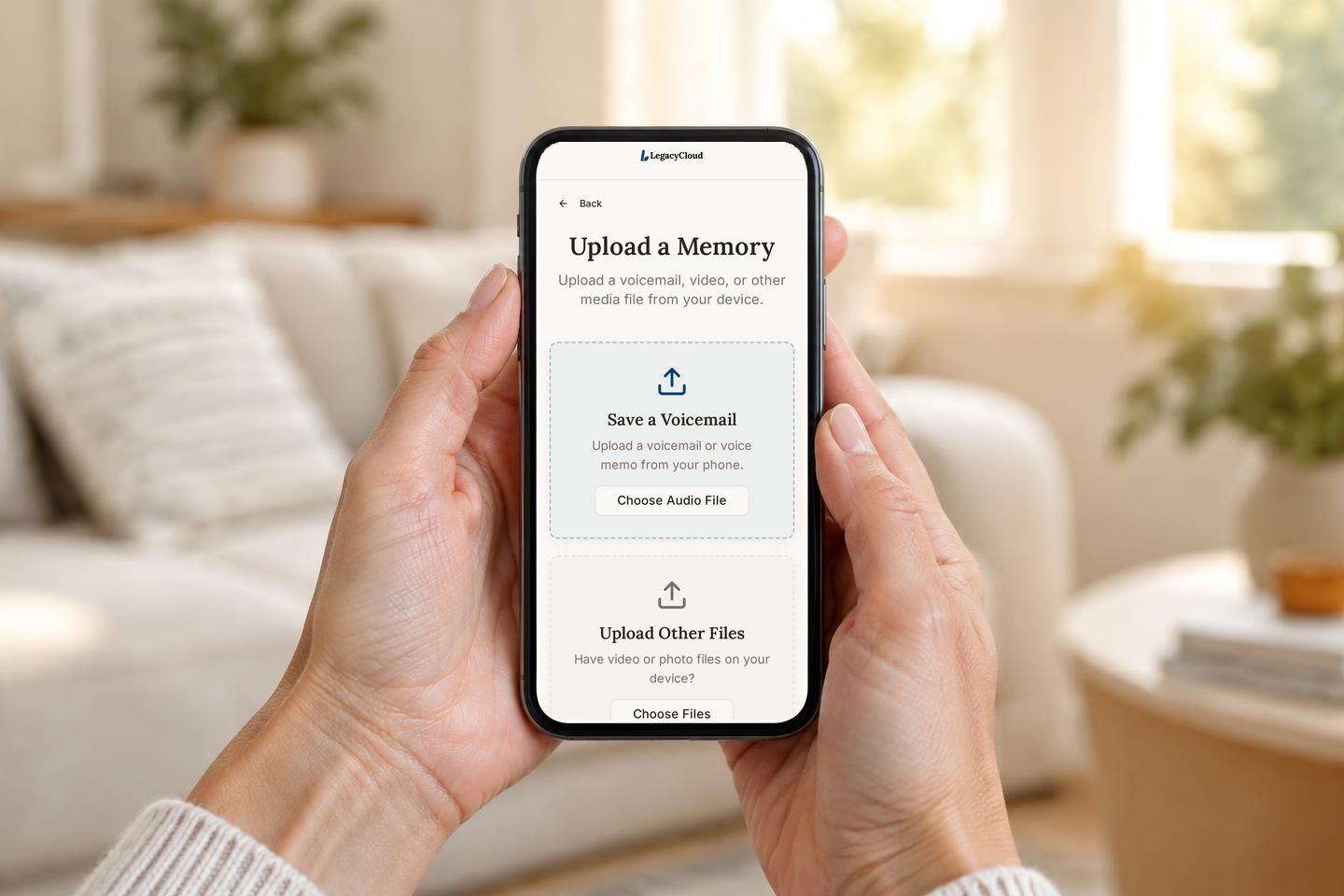
This is one of the reasons we built LegacyCloud. Along with recording new stories, LegacyCloud lets you upload photos, voicemails, and videos you already have, so a precious message can live alongside the rest of your family's memories instead of being buried in a phone. You can invite family members to listen and add their own memories, and everything is organized on a timeline so it is easy to find later. A voicemail that once sat in an inbox can become part of a story your whole family keeps.
Save It Today
If you have read this far, there is probably a specific message you are thinking about right now. Take two minutes and save it. Export it from your phone, store it in at least two places, give it a clear name, and share it with someone who loves that voice as much as you do.
And if the person who left that message is still with you, consider this your reminder to capture more than a voicemail. Ask them about their life, their stories, and what they want the family to remember. Our guide to questions to ask your grandparents is a good place to start.
Start your free 7 day trial of LegacyCloud, no credit card needed, and keep the voices you love alongside the rest of your family's stories.